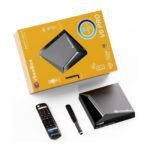


Setting up a vSeeBox takes about ten minutes and needs no technical knowledge. Here is exactly what to do, plus fixes for the most common hiccups.
What you need
- Your vSeeBox, remote, HDMI cable and power adapter (all in the box).
- A TV with a free HDMI port.
- Your Wi-Fi name and password, or an Ethernet cable.
Step-by-step setup
- Connect to the TV. Plug the HDMI cable into the box and into a free HDMI port on your TV.
- Power it on. Connect the power adapter, then switch your TV to the matching HDMI input.
- Pair the remote. If prompted, follow the on-screen pairing instructions.
- Get online. Choose your Wi-Fi network and enter the password, or plug in Ethernet for the most stable connection.
- Install updates. Let the box finish any available updates before you start watching.
Quick fixes
No picture on the TV
Check both ends of the HDMI cable and make sure the TV is on the right HDMI input.
The remote does not respond
Replace the batteries and try again from a few feet away. Lost it? We stock genuine replacement remotes.
Videos keep buffering
Restart your router and the box, move the router closer, or switch to a wired Ethernet connection.
Need a hand?
Our team helps with setup 7 days a week. Visit our support page or send us a message with your box model.